⏱️ Timer
What is the Timer feature?
The "Timer" feature in FormNX lets you add a countdown timer to your forms to control how long users have to complete them.
You set a total time in minutes, and a live countdown is shown to the respondent while they fill out the form. When the time reaches zero, the form automatically moves to the next page or automatically submits - so respondents can't spend longer than the limit you've set.
This feature is especially useful for online quizzes and exams, timed assessments, and any form where a fair, fixed time limit matters.
FormNX times pages, not individual questions. To give every question its own countdown, put one question on each page and use Per Page mode — see Getting a timer per question below.
Enabling the Timer
To enable the Timer feature on a form, follow these steps:
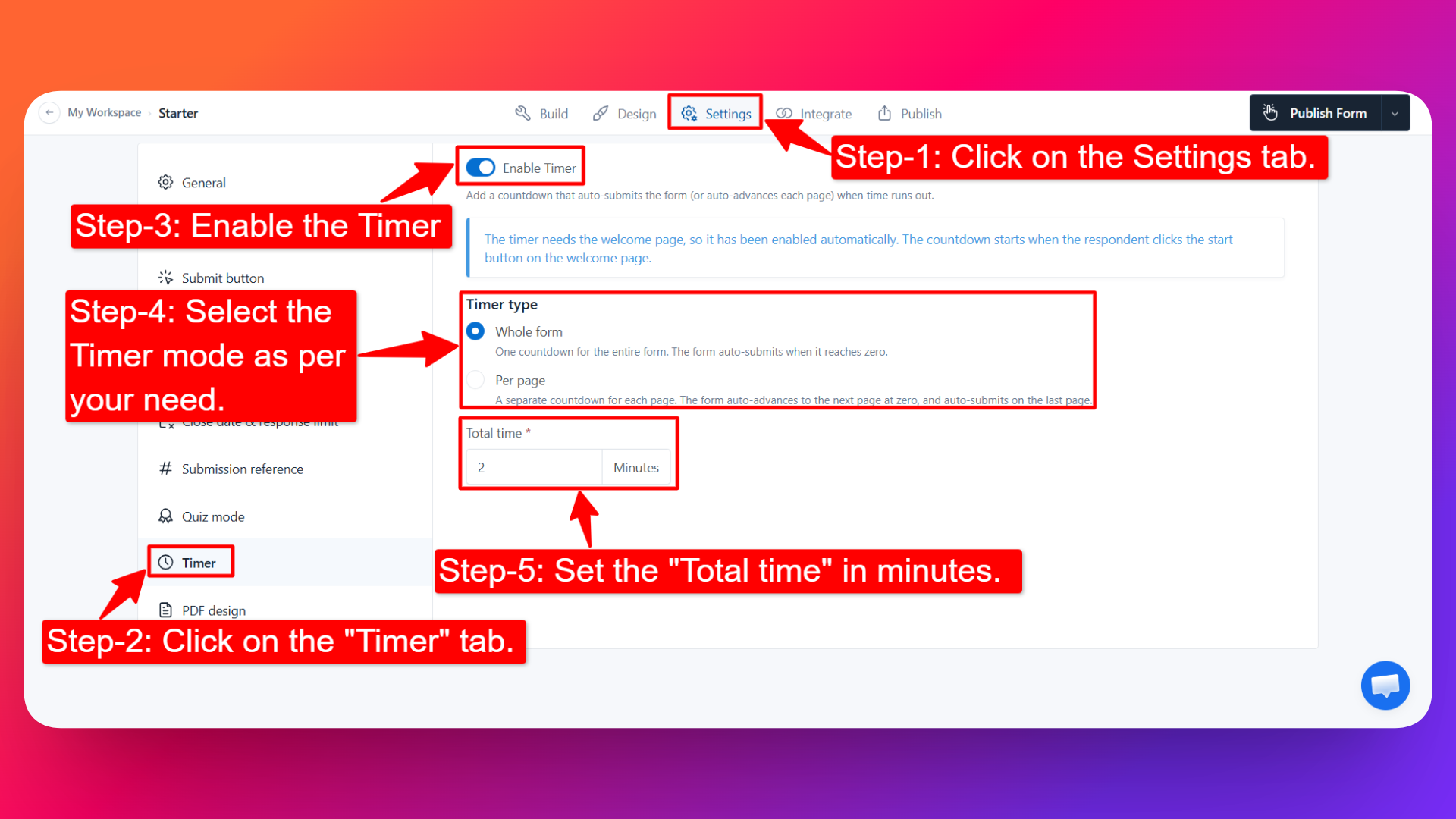
Open your form: Go to the form for which you want to enable the Timer feature and open it in the form builder.
Access the Settings tab: Click on the Settings tab in the form builder.
Find the Timer block: On the left-hand side, look for the Timer block and click on it.
Enable the Timer: You will see a button to enable the Timer feature. Toggle it on to enable the timer.
Set the total time: Enter the total time for the timer in minutes (for example,
1,2, or any duration you need in minutes).Choose a timer mode: After enabling the timer, select one of the two timer modes described below.
Save your settings: Be sure to save your form after configuring the Timer.
Timer Modes
After enabling the timer, you will see two timer mode options:
1. Whole Form
One countdown for the entire form. The form auto-submits when the countdown reaches zero.
Choose this mode when you want to give respondents a single overall time limit to complete the whole form, regardless of how many pages it has.
2. Per Page
A separate countdown for each page. The form auto-advances to the next page when the countdown reaches zero, and auto-submits on the last page.
Choose this mode when you want to pace respondents through a multi-step form, giving each page (or section) its own time limit.
Per Page mode works well alongside Multi-Step Forms, where each page can hold a distinct section or group of questions.
Getting a timer per question
There is no separate "per question" timer setting, because the timer counts down per page. That gives you per-question timing directly:
One question per page + Per Page mode = one timer per question.
To set it up:
- Split your form so that each page holds a single question, using page breaks.
- Turn the Timer on and choose Per Page mode.
- Set the time you want each question to allow.
Each question now gets its own countdown, and the form moves on to the next question automatically when that countdown hits zero.
In Per Page mode the countdown belongs to the page, and it starts again from the full time whenever a respondent lands on that page — including when they use the Previous button to return to a page they've already answered.
If you're using the timer to keep an assessment fair, remove the way back: hide the Previous button with this Custom CSS snippet. With no Previous button, each question is seen once, under the time you set.
The Timer requires the Welcome Page
The Timer feature works together with the Welcome Page, so the Welcome Page must be enabled on your form for the timer to function.
Here's how it works:
- Enable the Welcome Page on your form.
- Enable the Timer feature and save the form. Because the timer needs the Welcome Page, it is enabled automatically once both are set up and saved.
- On the live form, the countdown starts when the respondent clicks the Start/Next button on the Welcome Page - not the moment the page loads.
This gives every respondent a fair, consistent starting point: the timer begins only when they're ready to start, and then counts down according to your chosen timer mode.
If the Welcome Page is not enabled on your form, the Timer feature won't be available. Enable the Welcome Page first, then enable the Timer.
Why use the Timer feature?
- Control completion time: Set exactly how long users have to fill out your form.
- Ensure fairness: Give every respondent the same amount of time - essential for quizzes, exams, and assessments.
- Prevent overthinking: Time limits encourage quick, honest responses on surveys and reduce drop-off from indecision.
- Automate the flow: The form advances and submits on its own when time expires, so you don't have to manually manage timing or cut-offs.
Use Cases
The Timer feature is useful for a wide range of forms, including:
- Online quizzes and exams - enforce a strict time limit per attempt.
- Timed assessments - evaluate candidates fairly under equal conditions.
- Surveys with response limits - keep responses spontaneous and reduce fatigue.
- Certification tests - replicate real exam conditions with a fixed duration.
- Practice exams - help students rehearse under timed, exam-like pressure.
- Skill and aptitude tests, timed contests, and many more.
If you're building graded quizzes or exams, pair the Timer with FormNX's Quiz Mode to score answers automatically and show results.
For exam and certification settings, also turn on Show a Random Subset of Questions (Pro) so each candidate gets a different set of questions drawn from your question bank — a fixed time limit plus a different paper per candidate makes answer-sharing almost useless.
FAQs
What happens when the timer runs out?
It depends on the mode you choose. In Whole Form mode, the form auto-submits when the timer reaches zero. In Per Page mode, the form auto-advances to the next page at zero, and auto-submits automatically on the last page.
Can I set the timer in seconds?
The timer is set in minutes. You can enter any duration you need in minutes (for example, 1, 2, 5, 30, and so on).
Can I set a timer for each question? Is there a per-question timer?
Not as a separate setting — the timer runs per page. To get one timer per question, put a single question on each page and use Per Page mode. See Getting a timer per question.
Does the timer restart if a respondent goes back a page?
Yes. In Per Page mode the countdown is tied to the page, so returning to an earlier page starts that page's timer again from the full time. If that matters for fairness, hide the Previous button using this Custom CSS snippet.
Can I put a time limit on my form?
Yes. Enable the Timer and set your total time — the respondent sees a live countdown and the form submits itself when the time is up. Choose Whole Form for one limit across the whole form, or Per Page to limit each page separately.
What's the difference between Whole Form and Per Page mode?
Whole Form gives one countdown for the entire form and auto-submits at zero. Per Page gives each page its own countdown and auto-advances to the next page at zero, auto-submitting on the last page.
Can respondents see the countdown while filling out the form?
Yes. A live countdown is displayed to the respondent so they always know how much time is left.
Do I need the Welcome Page to use the Timer?
Yes. The Timer feature requires the Welcome Page to be enabled on your form. Once the Welcome Page is enabled and you turn on the Timer and save, the timer is enabled automatically. The countdown then starts when the respondent clicks the Start/Next button on the Welcome Page.
When exactly does the countdown start?
The countdown does not start when the form loads. It starts the moment the respondent clicks the Start/Next button on the Welcome Page, and then runs according to your selected timer mode.
Can I change or disable the timer after creating the form?
Yes. You can go back to the Settings tab, click on the Timer block, and update the total time, switch modes, or toggle the timer off at any time. Remember to save your form after making changes.
Does the Per Page timer work with multi-step forms?
Yes. Per Page mode is designed for forms with multiple pages - each page gets its own countdown, making it ideal for multi-step forms.