⏲️ Close Date & Response Limit
What is Close Date & Response Limit?
The "Close Date & Response Limit" feature in FormNX (previously called Form Scheduling) allows you to precisely control when your forms are open to form visitors and how many responses they can accept.
You can specify both the start date and time and the end date and time for the form's availability, and you can also cap the total number of responses your form will accept.
This feature is particularly useful for time-sensitive forms, promotions, events, and any form where you need to limit the number of responses.
Configuring Close Date & Response Limit
To set up start & end datetime and a response limit for a form in FormNX, follow these steps:
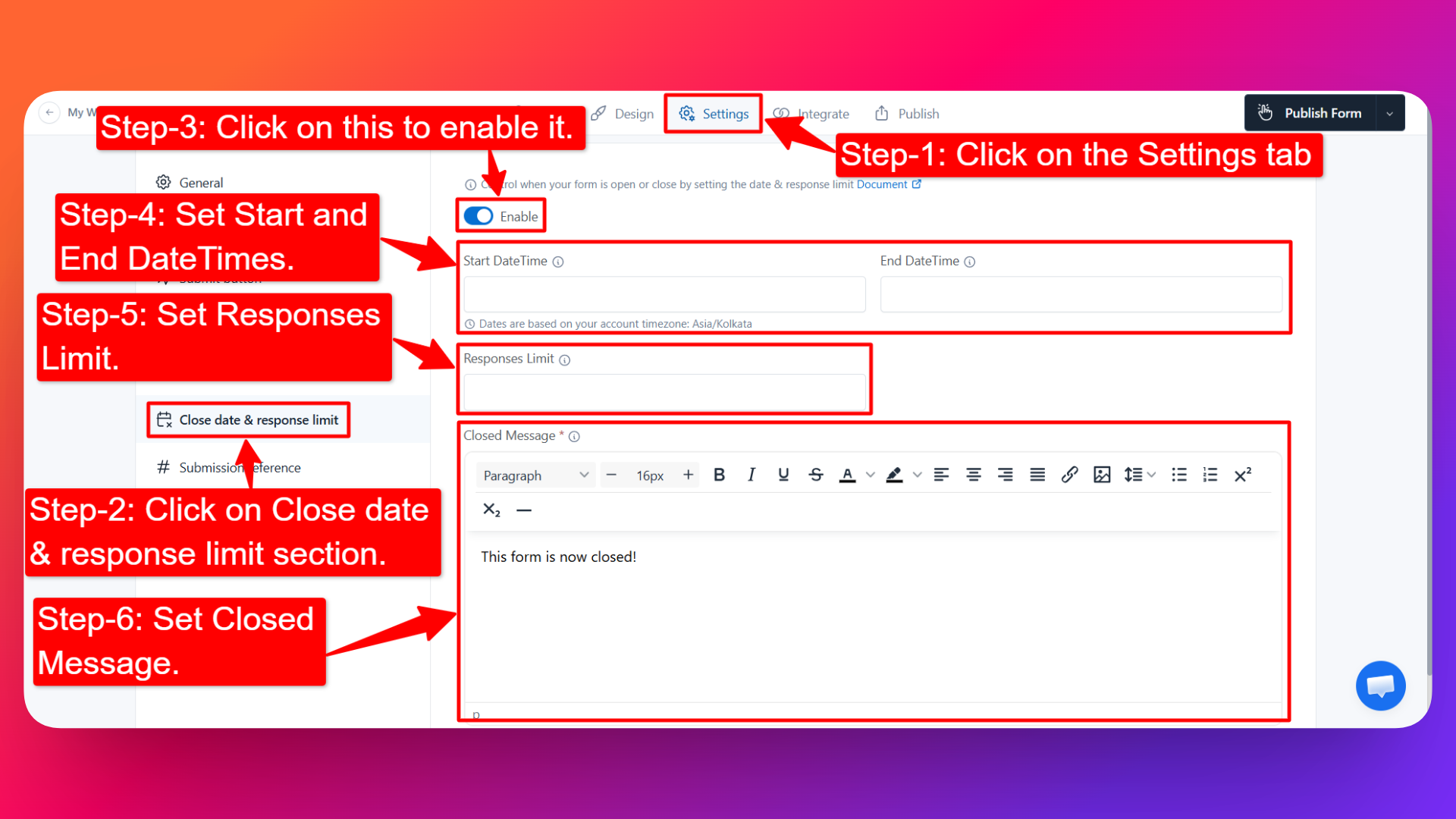
Access Settings Tab: Open the form you want to configure, click on the "Settings" tab & then click on the "Close Date & Response Limit" section.
Enable the Option: First enable it.
Set Start and End Dates/Times: Specify the start date and time when the form should become accessible to site visitors and the end date and time when the form should close.
Set Responses Limit: Enter the maximum number of responses your form should accept (for example,
1000to allow up to 1000 responses). The form closes automatically once the limit is reached and displays the custom Closed Message you've added to inform visitors.Set Closed Message: Enter the message in the Closed Message text editor to show a message when the form is closed.
Save Your Settings: Be sure to save your form.
If you are unable to access your form even though the end date and time have not passed, but the start date and time have already passed, it may be because the timezone in your account isn't set correctly for your local timezone.
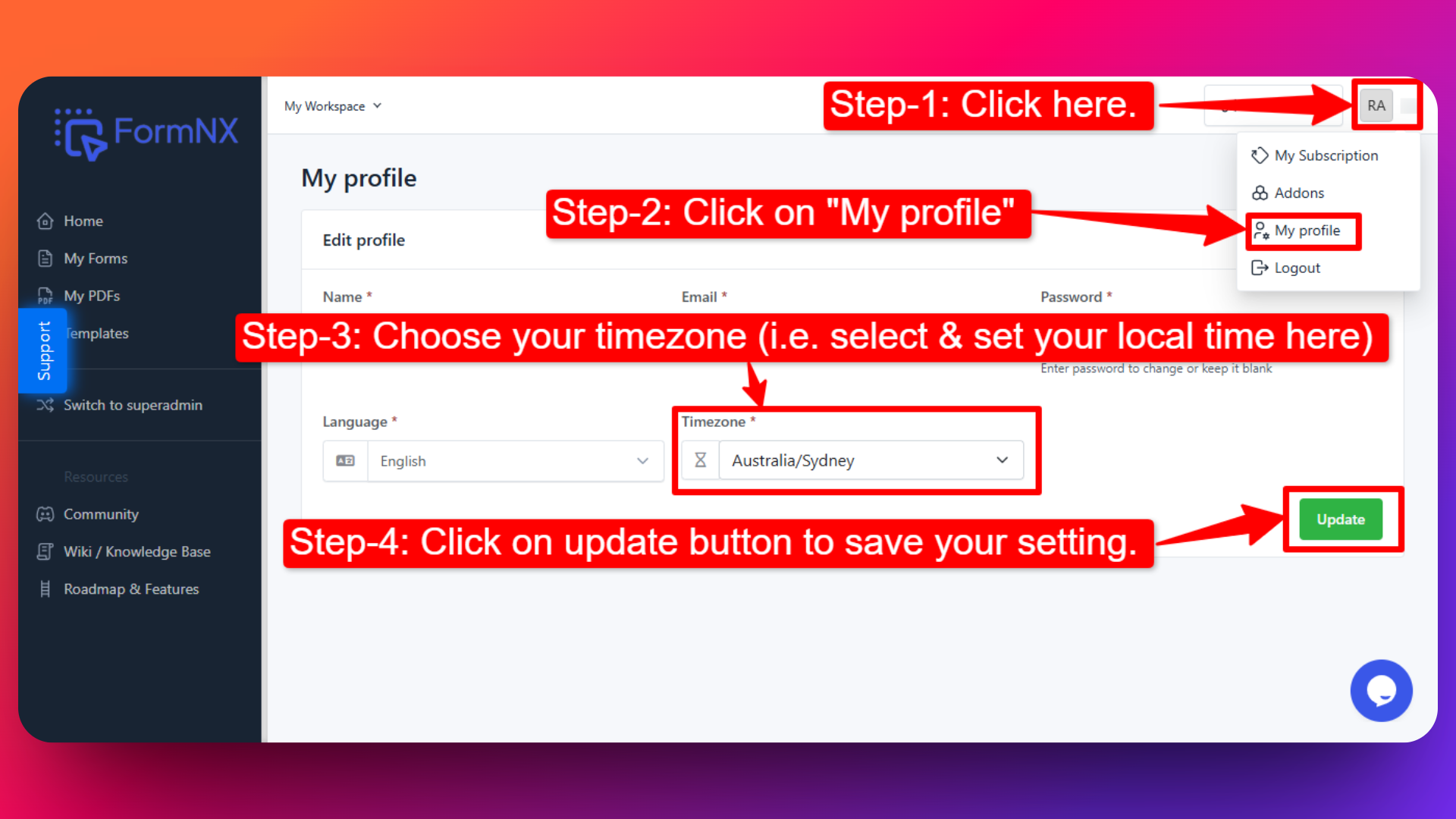
How to set or update the Timezone for your FormNX account
To set the timezone for your profile, please follow these steps:
Step-1: Click on the profile icon located in the top right corner.
Step-2: Click on the My Profile section.
Step-3: In this section, you will find an option to select your timezone. Please select the timezone that matches to your local time.
Step-4: Click on the Update button to save your settings.
Example Use Cases
Limited-Time Offer Form
Suppose you have a limited-time offer that is only available for a specific duration.
You can create a form to collect orders and use "Close Date & Response Limit" feature to ensure that the form is only accessible during the offer period.
Set the start and end dates and times to match the offer's duration.
Event Registration Form
For an event registration form, you can use Close Date & Response Limit to open the registration period at a certain date and time and close it when registration ends.
Users who visit the form after the registration period has ended will see a custom message informing them that registration is closed.
Explore Event Registration form Templates & RSVP form Templates
Limited-Capacity Registration Form
Suppose you're accepting registrations for a workshop with only 1000 seats. Set the Responses Limit to 1000, and the form closes automatically once that limit is reached and displays your custom Closed Message - no manual monitoring needed. This is ideal for workshops, webinars, and any event with a fixed number of seats.
Giveaways & First-Come-First-Served Signups
For a giveaway or a limited free-trial offer where only the first N entries qualify, set the Responses Limit to that number. The moment the cap is hit, the form stops accepting entries and shows a Closed Message such as "All spots have been claimed - thank you!" This keeps the process fair and transparent without you having to close the form by hand.
Contest & Coupon Distribution Form
Running a contest or handing out a fixed batch of discount coupons? Cap the responses at the number of prizes or coupons available. Once that many people have entered, the form closes automatically and your Closed Message can point late visitors to your next campaign.
FAQs
Can I change the scheduled dates and times after the form has been created?
Yes, you can edit the Close Date & Response Limit settings at any time to change the start and end dates and times.
This is useful if you need to extend the availability of a form or adjust the scheduling for other reasons.
How does the Responses Limit work?
You set a maximum number of responses (for example, 1000). Your form accepts responses normally until it reaches that number. The form then closes automatically once the limit is reached and displays the custom Closed Message you've added to inform visitors.
Can I use both the close date and the response limit together?
Yes. You can combine both - the form will close whichever happens first: reaching the end date/time or reaching the response limit.
Can someone submit after the form is closed?
No, Submissions are not allowed after the form is closed (beyond the end date and time, or once the response limit is reached). You can display a custom message or include a different link for if you want to capture the late submission in a different form for processing differently.
Can I schedule recurring forms, such as daily or weekly surveys?
While FormNX's native Close Date & Response Limit may not support recurring forms, you can manually create or change and schedule multiple instances of the same form to achieve a recurring survey schedule.