💬 Recall Answer / Information
What is Recall answer/information?
Recall answer/information lets you pull the answer a respondent already gave to an earlier question and display it inside a question you ask later on. Instead of every question sounding the same for everyone, each respondent sees their own words repeated back to them.
The simplest way to use it is to recall something personal - like a respondent's name - so the form feels like a conversation rather than a checklist.
Example:
- Question 1: "What's your name?" → the respondent types John.
- Question 2: the respondent sees "Hi John, nice to meet you. Shall we start?"
- Question 3: the respondent sees "John, what's your age?"
The recalled text is dynamic. Whatever the respondent types in the earlier question is exactly what appears in the later one - so John, Smith, or any other answer shows up automatically, with no extra work from you.
How to recall a previous answer
You add a recall by typing the @ symbol in the question you want to personalize.
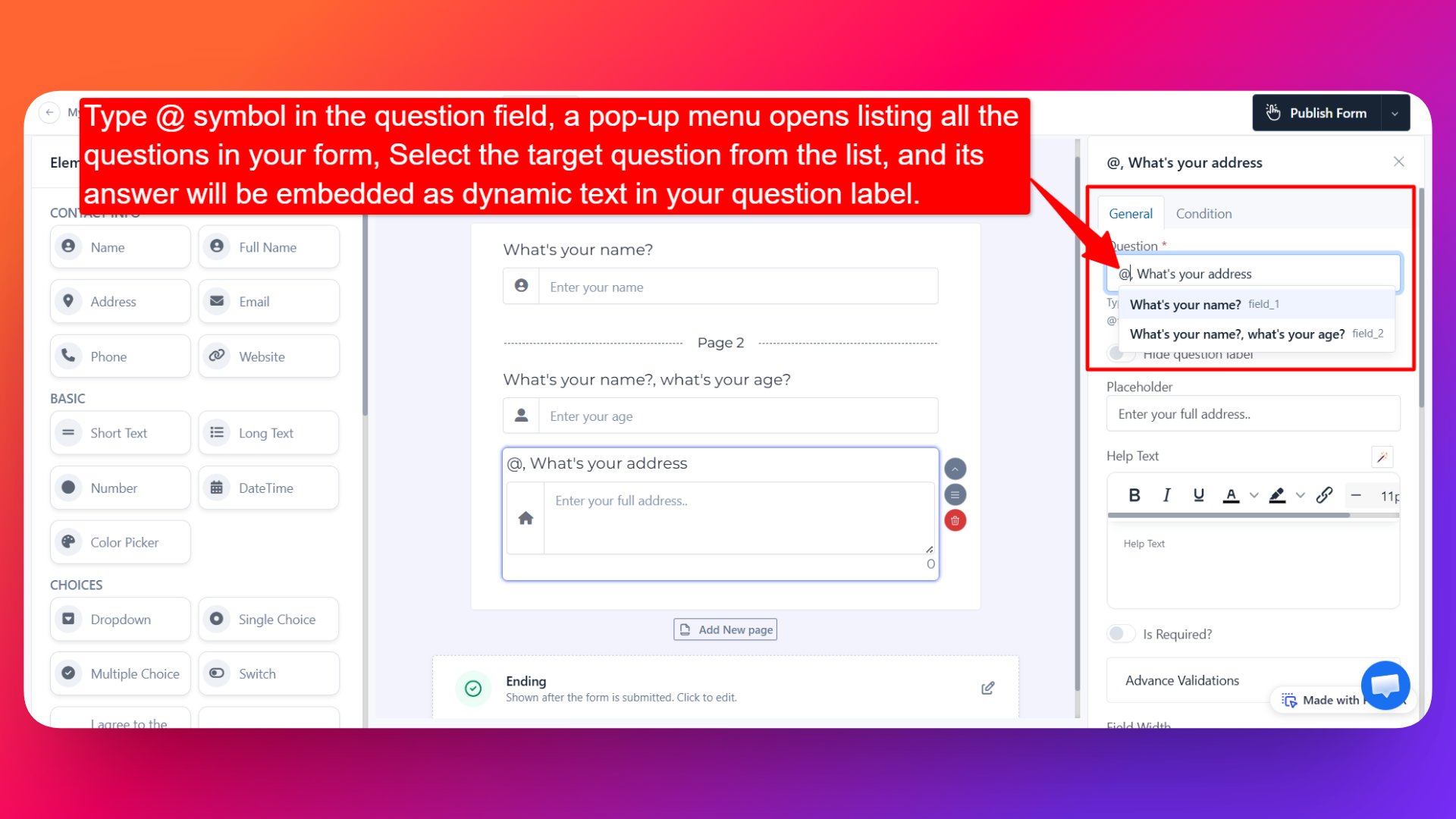
Open your form in the form builder.
Click into the question label of the later question - the question where you want the earlier answer to appear.
Type the
@symbol in the question label/field. A pop-up menu opens listing all the questions in your form, so you can see every answer you're able to pull from.Choose the target question from the pop-up list. The answer to that question is embedded in your label as dynamic text.
Write the rest of your label before or after the recalled answer - for example, type
Hibefore it and, nice to meet you.after it to build a complete sentence.Save your form.
From now on, when people fill out your form, they'll see the answer they gave earlier - or whatever else they type - right inside that later question.
You can add more than one word around a recall. Treat the recalled answer as a single piece of text and write your sentence around it, exactly as you want the respondent to read it.
Recall currently works in question labels only. Type @ inside the label of a question - it isn't available in other parts of the form.
Where to use Recall information?
Recall is useful anywhere a question reads better with the respondent's own answer in it:
- Greetings and introductions - "Hi John, let's get started."
- Follow-up questions about an earlier answer - "John, what's your email address?" or "How old are you, John?"
- Confirming a choice before moving on - repeat the option the respondent selected in the next question so they know exactly what they're answering about.
- Later steps of a multi-step form - recall an answer given on an earlier page into a question on a later page, so each step builds on the last.
- Branching questions built with conditional fields - when a question only appears for certain respondents, recall makes that question specific to the answer that triggered it.
The @ menu lists every question in your form, including the ones that come after the question you're editing. Always pick a question the respondent will have answered by then - keep the source question earlier in the form, and on an earlier page in a multi-step form.
How recalled answers appear
The recalled text is simply the answer the respondent gave:
- Text-based questions (name, email, number, and similar) show exactly what the respondent typed.
- Multiple choice questions show the selected options. If a respondent selected more than one option, the answers appear comma separated - for example,
option 1, option 2. - Skipped or unanswered questions fall back to the question label of the source field. So if you recall a question titled "What's your name?" and the respondent leaves it empty, they'll see
What's your name?in place of an answer.
Because an empty answer falls back to the source question's label, recall works best on required questions - or on questions placed early enough that respondents have almost certainly filled them in. Keeping the source label short and human-readable also means the fallback still reads acceptably if someone does skip it.
Formatting is not supported
We don't support formatting on Recall information text. That means you cannot:
- Make the recalled text bold
- Make the recalled text italic
- Turn the recalled text into a URL / link
The recalled answer is always shown as plain text.
Why use Recall answer/information?
- Makes forms feel conversational - respondents feel like someone is talking to them personally, not filling out a static form.
- Removes repetition - you never have to ask for the same information twice, and respondents never have to repeat themselves.
- Adds clarity - later questions can point back to a specific earlier answer, so there's no ambiguity about what's being asked.
- Improves completion rates - a personalized, conversational flow keeps people engaged through longer forms.
- Zero setup per respondent - one
@mention personalizes the question for everybody who fills out your form.
Use Cases
- Lead capture and contact forms - greet the person by name after the first question.
- Surveys and feedback forms - ask a follow-up about the exact product, service, or option the respondent picked.
- Registration forms - confirm the event, course, or plan the respondent chose before collecting payment details.
- Quizzes - address the participant by name across each question for a friendlier experience.
- Application and onboarding forms - carry earlier answers forward through a long, multi-step flow so it reads as one continuous conversation.
- Booking and appointment forms - repeat the chosen date, time, or service back to the respondent in the next question.
FAQs
What is Recall answer/information in FormNX?
It's a feature that lets you pull answers from previous form questions into questions you ask later on, so each respondent sees their own answers inside your question labels.
How do I recall a previous answer?
Click into the question label of the later question, type the @ symbol, then choose the question you want to pull the answer from in the pop-up menu that appears.
Which questions can I recall answers from?
When you type @, the pop-up menu shows all the questions in your form and you can pick any one of them. Choose a question that comes before the one you're editing, so the respondent has already answered it by the time the recall appears.
Where in the form can I use Recall?
Recall works in question labels only for now. Click into a question's label and type @ - the feature isn't available in other areas of the form.
What happens if the respondent skips the question I'm recalling?
The question label of that source field is shown instead of an answer. For example, recalling an empty "What's your name?" question displays What's your name? in your later question. Making the source question required avoids this.
Can I write my own text along with a recalled answer?
Yes. Once you've chosen which information to recall, you can write your label text before or after it - for example, "Hi {name}, nice to meet you."
Can I recall more than one answer in the same question?
Yes. Type @ again wherever you want another answer to appear and choose a different question from the pop-up menu.
Can I bold, italicize, or link the recalled text?
No. We don't support formatting on Recall information text, so bolding, italics, and URLs can't be applied to it. It always appears as plain text.
What does a multiple choice answer look like when it's recalled?
The selected options appear as plain text, comma separated - for example, option 1, option 2.
Does Recall work with multi-step forms?
Yes. Recall an answer from a question on an earlier page into a question on a later page of your multi-step form, so every step builds on what the respondent has already told you.
How is Recall different from pre-filling fields from a URL?
Recall uses answers the respondent gives inside the form. Pre-filling form fields via URL parameters uses values you already know and pass in through the form link before the respondent starts.