📝 Save Your Progress
The Save Your Progress feature (previously called Form Submission as Draft) is particularly useful when form respondents need to save their progress and return at a later time to complete the submission. Respondents can save what they've filled in, get a progress link, and even email that link to themselves so they can continue on another device or at a later time. Below, we'll walk you through how to enable this feature and how to use it effectively.
Enabling the "Save Your Progress" Feature
To enable the "Save Your Progress" feature, refer to the screenshot below:
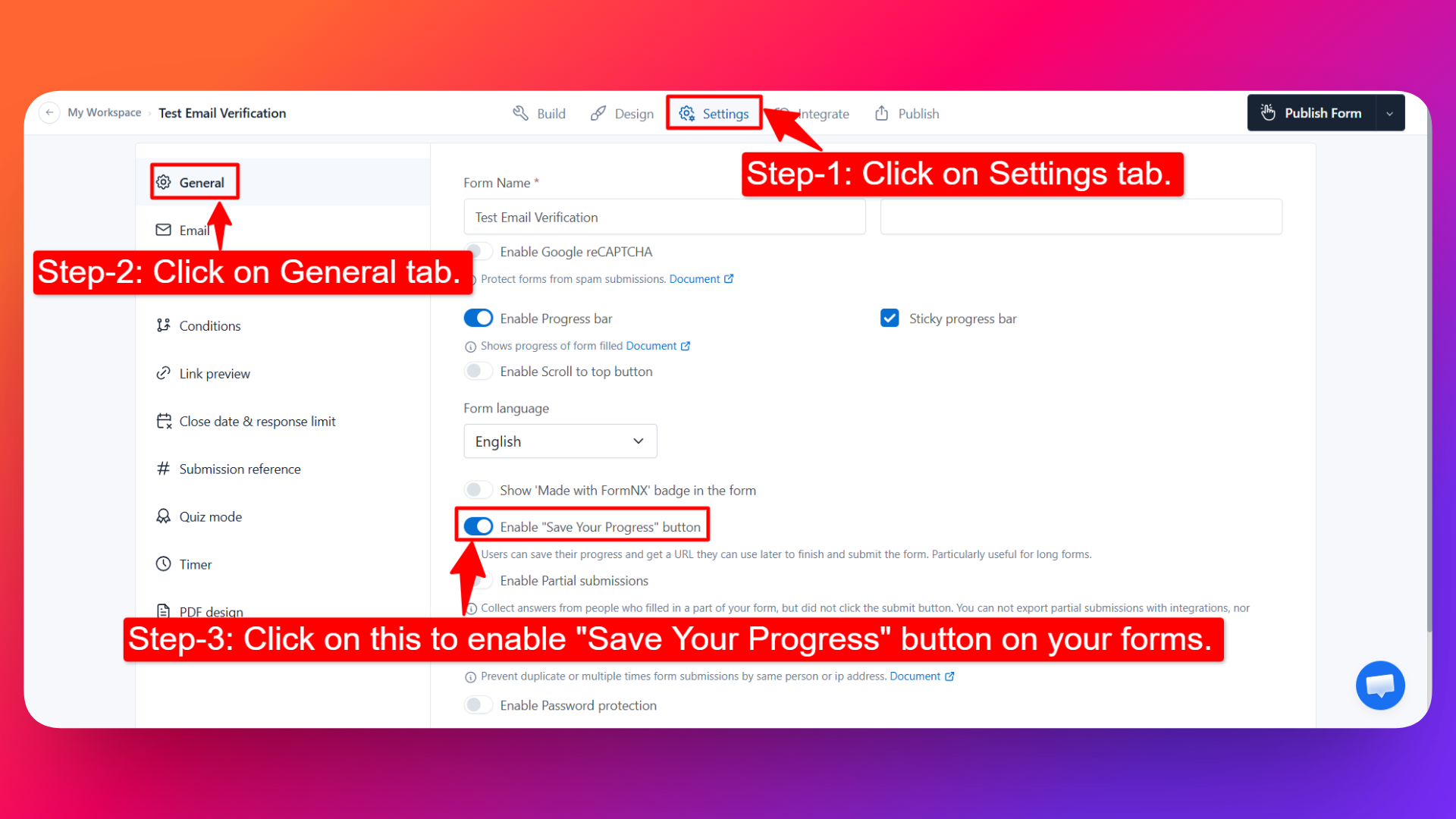
After enabling this feature, your form will now show two buttons for respondents: "Submit" and "Save Your Progress."
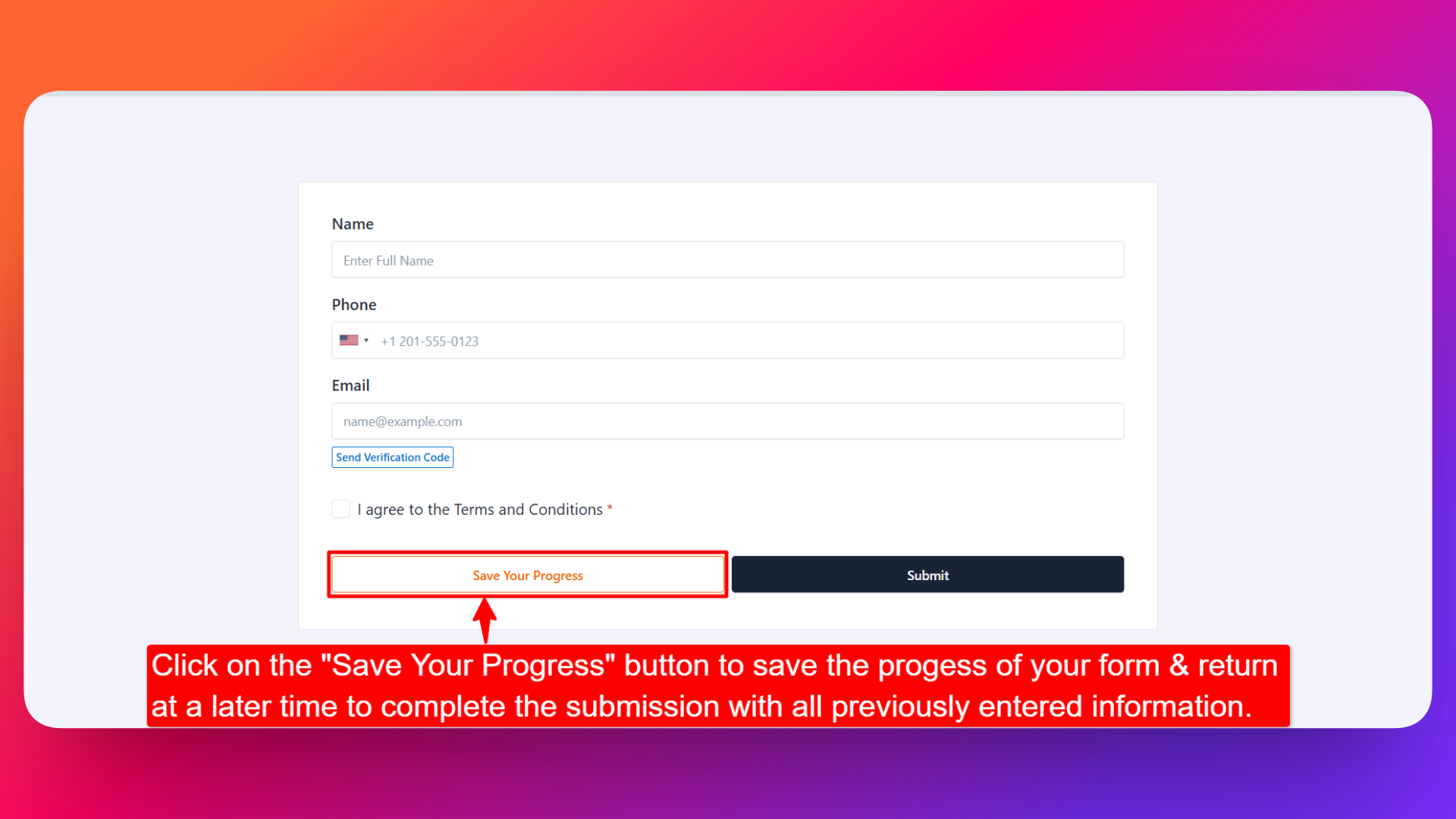
This feature was previously called Form Submission as Draft, and the button used to display "Draft". It now displays "Save Your Progress" and includes a new option to email the progress link to yourself.
Using the "Save Your Progress" Feature
With the "Save Your Progress" feature enabled, form respondents can save their progress without completing the submission. Here's how it works:
Saving Your Progress
Fill Out the Form: Respondents can begin filling out the form as usual, entering information into the fields provided.
Save Your Progress: If a respondent needs to pause or postpone completion, they can click the "Save Your Progress" button. This action saves their current progress without submitting the form.
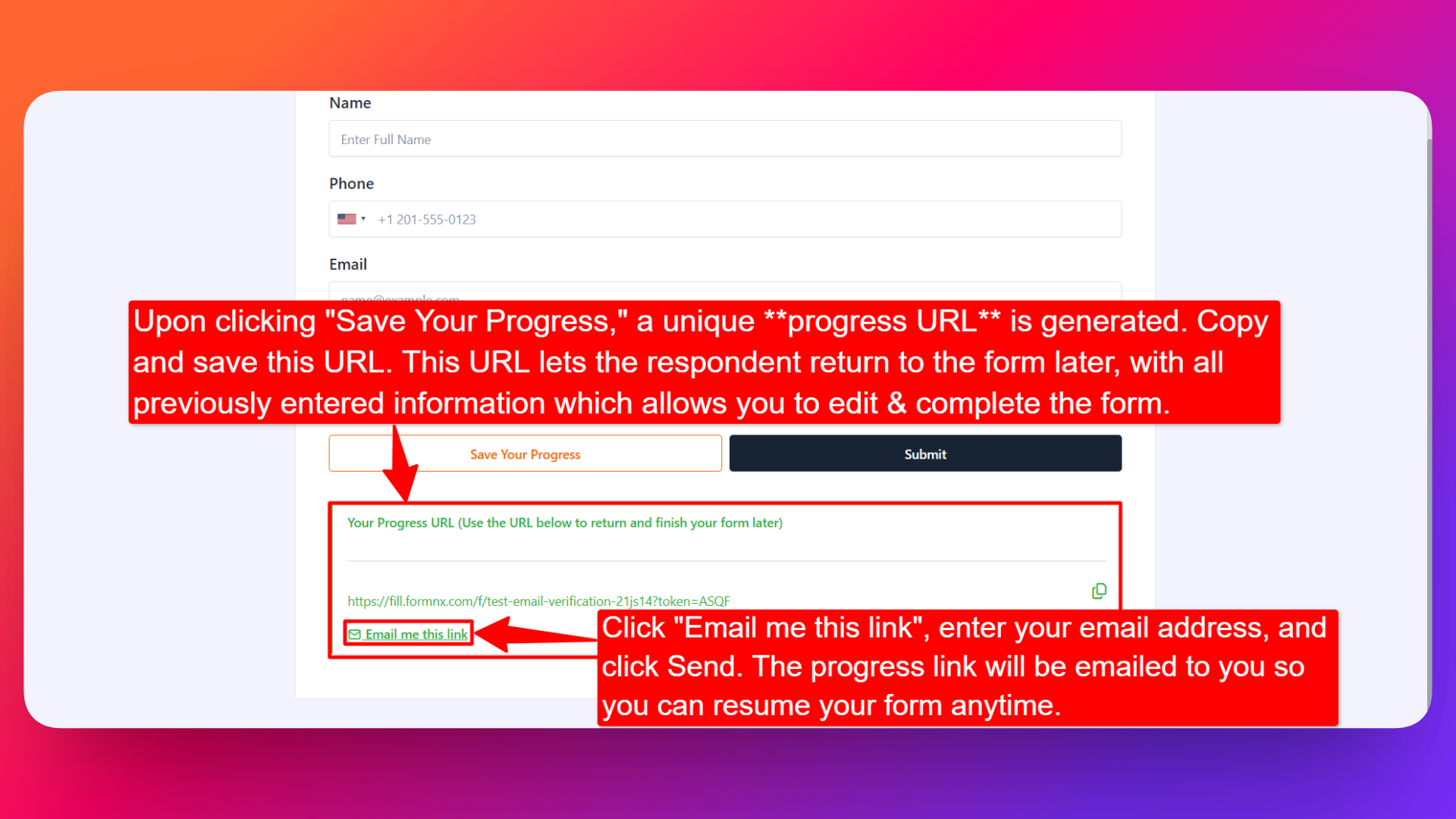
Get Your Progress Link: Upon clicking "Save Your Progress," a unique progress URL is generated. This link lets the respondent return to the form later, with all previously entered information intact, ready for editing or completion.
Emailing the Progress Link to Yourself
Below the generated progress URL, respondents will now see an "Email me this URL" link. This makes it easy to keep the link safe and continue on another device or at a later time.
- Click the "Email me this URL" link shown below the progress URL.
- Enter the email address where you want to receive the progress link.
- Click Send. FormNX emails the progress URL to that address.
- Open the email whenever you're ready, click the progress link, and continue the form with all your previously entered data intact.
This is handy when respondents don't want to copy the link manually or worry about losing it - it lands right in their inbox, ready to use whenever they return.
Editing and Submitting Later
Open Your Progress: To return to a saved form, use the unique progress URL (either the one generated on screen or the one emailed to you). This link opens the form with all previously entered data displayed.
Edit Information: Respondents can edit or add to the information previously entered as needed. The form retains all data until the respondent is ready to submit.
Submit Form: Once the form is complete and the respondent is satisfied with their entries, clicking the "Submit" button finalizes the submission.
Why Use Save Your Progress?
This feature prevents users from losing partially completed forms and makes it easy to continue on another device or at a later time.
Perfect for:
- Long application forms - let applicants complete lengthy forms across multiple sittings.
- Multi-step registrations - respondents can pause between steps and resume where they left off.
- Surveys that take time to complete - reduce drop-off on detailed or research-heavy surveys.
- Any form users may need to finish later - give respondents the flexibility to return whenever it's convenient.
Save Your Progress works especially well alongside Multi-Step Forms, where respondents move through several pages and may need to pause partway through.
Conclusion
The Save Your Progress feature in FormNX offers a flexible, user-friendly way for respondents to manage their submission process. By enabling it - and letting respondents email their progress link to themselves - you provide an extra layer of convenience, so users never lose partially completed forms and can pick up right where they left off, on any device, at any time.