How to Make a Linear Scale in Google Forms (Plus Likert, Rating and NPS)
To add a linear scale in Google Forms:
- Click Add question and choose in the question type menu.
- Set the range. It starts at 0 or 1 and ends at any number from 2 to 10.
- Type a label for each end, such as "Not satisfied" and "Very satisfied".
For stars, choose Rating. For a Likert scale, use a Multiple choice grid. Google Forms has no slider.
How do I add a linear scale in Google Forms?
Pick Linear scale as the question type, set the numbers and label the two ends.
- Click Add question (the plus icon), type your question and choose Linear scale in the question type menu.
- Set the range. The scale starts at 0 or 1 and ends at any number from 2 to 10. The default is 1 to 5.
- Type a label for each end, such as "Not satisfied" and "Very satisfied".
- Turn on Required so nobody can skip the question.

What is a linear scale in Google Forms, and how does it work?
A linear scale is a row of numbered buttons with a label at each end. Respondents click one number. Your form saves that number as the answer.
In the Responses tab, Summary shows how many people picked each number. In Google Sheets, each answer is a plain number, so you can average it.
Linear scale question examples
| Question | Scale | End labels |
|---|---|---|
| How satisfied are you with the workshop? | 1 to 5 | Not satisfied, Very satisfied |
| How likely are you to recommend us to a friend? | 0 to 10 | Not at all likely, Extremely likely |
| How easy was it to sign up? | 1 to 5 | Very difficult, Very easy |
| I would come to this event again. | 1 to 5 | Strongly disagree, Strongly agree |
| How much pain do you feel today? | 0 to 10 | No pain, Worst pain |
How do I add a rating scale or star rating in Google Forms?
Choose Rating in the question type menu. It shows a row of stars, hearts or thumbs up, and the respondent clicks one.
- Add a question and choose Rating.
- Pick how many icons to show, from 3 to 10.
- Pick the icon: star, heart or thumbs up.

Google added Rating in October 2024. Before that, people used a linear scale for star ratings. One catch: if a form has a Rating question, you can't put the whole form inside an email. Send the form link instead.
Linear scale or rating?
| Linear scale | Rating | |
|---|---|---|
| Looks like | Numbered buttons | Stars, hearts or thumbs up |
| Range | 0 or 1, up to 10 | 3 to 10 icons |
| End labels | Yes | No |
| Best for | Agreement, likelihood, NPS | Quick feedback on a talk, product or service |
Can you make a Likert scale in Google Forms?
Yes, with a Multiple choice grid. Google Forms has no question type called Likert.
- Add a Multiple choice grid.
- Type one statement in each row.
- Type the scale in the columns: Strongly disagree, Disagree, Neither agree nor disagree, Agree, Strongly agree.
- Turn on Require a response in each row.
For a single statement, a 1 to 5 linear scale labelled Strongly disagree and Strongly agree is quicker. Grid settings are covered in our multiple choice grid guide.
Grid answers reach Google Sheets as words, like "Agree", not numbers. To average them, change the words to numbers with a formula first.
How do I make an NPS survey in Google Forms?
An NPS (Net Promoter Score) survey measures how likely people are to recommend you. It asks one question: "How likely are you to recommend us to a friend or colleague?" People answer from 0 to 10.
- Add a Linear scale question with that wording.
- Set the scale from 0 to 10.
- Label 0 "Not at all likely" and 10 "Extremely likely".
- Turn on Required.
- Add a Paragraph question after it: "What is the main reason for your score?"
Google Forms doesn't work out the score. Link the form to Google Sheets. If the answers are in column B, this formula gives your NPS:
=(COUNTIF(B2:B,">=9")-COUNTIF(B2:B,"<=6"))/COUNT(B2:B)*100
Scores of 9 and 10 are promoters. Scores from 0 to 6 are detractors. NPS is the share of promoters minus the share of detractors, so it runs from -100 to 100.
What can't Google Forms scales do?
These eight things need a workaround, and every workaround has a catch.
| Missing in Google Forms | What people do instead | The catch |
|---|---|---|
| A slider | Use a 0 to 10 linear scale | People still click a number |
| Words on every point | Use a one-row grid or Multiple choice | Answers save as text, not numbers |
| Scales past 10, like 1 to 100 | Use Short answer with number validation | People type a number instead of clicking one |
| Half stars | Nothing | Every rating is a whole number |
| A follow-up question for low scores | Rebuild the scale as Multiple choice, which can branch | You lose the scale layout |
| A total score | Install Formfacade's Assign points add-on | From $38 a month billed annually, for 100 responses a month |
| An NPS score or average | Write formulas in Google Sheets | You set them up again for every form |
| A ranking question | Use a grid, as in our ranking workaround | People pick a rank in each row. They can't drag items into order |
"Go to section based on answer" works only on Multiple choice and Dropdown. That is why a linear scale or Rating question can't lead to a follow-up.
Rating scales without add-ons: Google Forms vs FormNX
Most of the workarounds above are plain settings in FormNX. Sliders, half stars, scales past 10 and follow-ups for low scores come built in, with no add-on and no question to rebuild.
All four rating fields and conditional logic are on the free plan, with unlimited responses. By comparison, Formfacade's Assign points add-on alone costs $38 a month, billed annually, for 100 responses.
Pro adds extras such as removing FormNX branding and advanced reports, from $19 a month or $190 a year. That is one bill and one support team for everything, with priority support by live chat and email.
| What you want | Google Forms | FormNX |
|---|---|---|
| Numbered scale with end labels | Yes, up to 0 to 10 | Yes, up to 0 to 15 |
| Star rating | Yes, 3 to 10 icons | Yes, any number of stars |
| Half stars | No | Yes |
| Slider | No | Yes, with your own min, max and step |
| A 1 to 100 scale | No, people type a number | Yes, as a slider |
| Likert table, each row required | Yes | Yes, with dropdown or text cells too |
| Show a follow-up question for low scores | No | Yes |
| NPS question, 0 to 10 | Yes | Yes |
| Add-ons or workarounds needed | For sliders, scores and follow-ups | None |
How to add a rating scale in FormNX
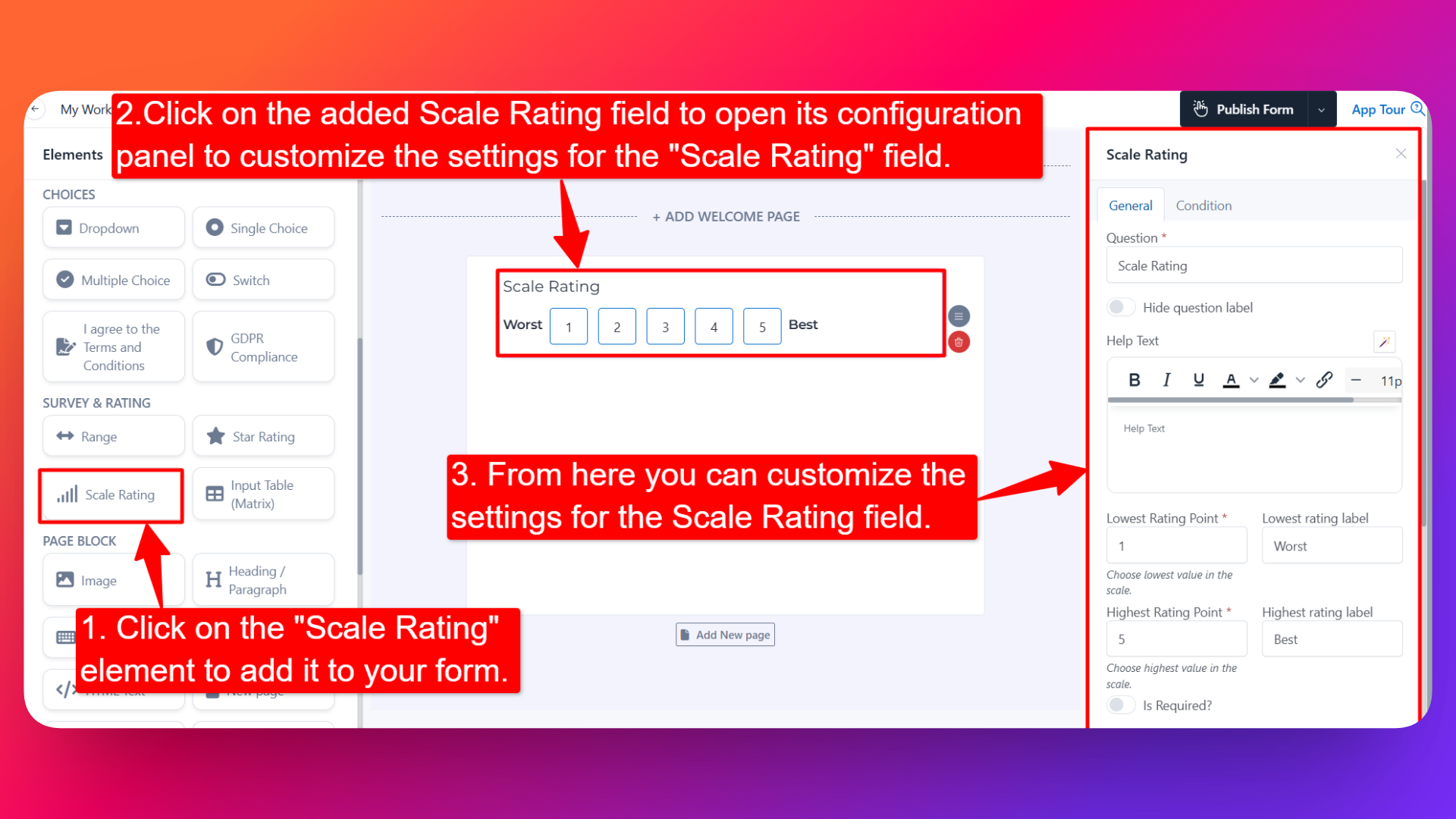
- In the Elements panel, under Survey & Rating, click Scale Rating.
- Click the field on your form to open its settings.
- Set Lowest Rating Point and Highest Rating Point, such as 0 and 10 for NPS.
- Type the Lowest rating label and Highest rating label.
- Turn on Is Required? and click Publish Form.
Pick the field that fits
- Star Rating: as many stars as you like, with half stars by default. Star Rating documentation
- Scale Rating: numbered buttons from 0 up to 15, with end labels. Use it for NPS. Scale Rating documentation
- Range: a slider. Set the min, max and step, such as $0 to $5,000 in steps of $100. Range documentation
- Input Table (Matrix): a Likert table. Cells can be radio buttons, checkboxes, dropdowns, text or numbers. Input Table documentation
To ask "What went wrong?" only after a low score, open the follow-up question's Condition tab. Show it when the rating is smaller than 3. More on conditional logic.
Start faster
- Use a template. The Net Promoter Score template has the 0 to 10 scale, its labels and two follow-up questions ready. More in customer feedback templates.
- Bring your Google Form. In FormNX, click New Form, then Import from Google Forms. Paste your form's public link, and FormNX copies its questions into a new form.
Stars, scales and sliders in one form
Star ratings, number scales, sliders and Likert tables are built in, and a low score can open a follow-up question.
Try FormNX freeAll four rating fields are on the free plan.
To compare the two builders in full, see the Google Forms alternative page.


 Reviews on Trustpilot