🧮 Calculation Field
The Calculation Field (shown as Form Calculation in the builder) automatically works out a number from other answers on your form — an order total, a quote, a fee, or a quiz score — and updates it live as the respondent fills the form in.
The Calculation Field is available on every plan, including Free.
📺 Video Demo

How calculations work in FormNX
There are two pieces, and most questions about calculations come from missing the second one:
- The Calculation Field — holds the formula and displays the result.
- Calculation Values — the number each answer option is worth.
A number field (like Quantity) already has a number in it, so a formula can use it directly. But a choice field (like Ticket type) contains text, not a number. To make choices count towards a total, you first assign each option a Calculation Value, then reference that field in your formula.
If a question is a Dropdown, Single Choice (Radio) or Multiple Choice (Checkbox), give its options a Calculation Value first. Then add a Calculation Field to total them up.
Step 1 — Assign Calculation Values to your options
Do this on every choice question that should contribute to the total.
- Click the choice field (Dropdown, Single Choice, or Multiple Choice) to open its configuration.
- Open Option Settings.
- Enable Calculation Value.
- Enter the value for each option.
For a pricing form the value is the price (Standard Ticket = 50, VIP Ticket = 150). For a quiz or an assessment it's the number of points the answer is worth (A = 2, B = 0.5, C = 1, D = 0).
Full details for each field type: Dropdown, Single Choice (Radio), Multiple Choice (Checkbox).
Step 2 — Add the Calculation Field and build the formula
- Add the Form Calculation element to your form from the Others group.
- Click it to open the calculation configuration.
- Build your expression by inserting the fields you want to use and the operators between them — add (
+), subtract (-), multiply (×) and divide (÷).
Fields are referenced by their Field Name (field_1, field_2, field_3, …), not by their label. You can see and copy a field's Field Name from that field's own configuration panel.
Before you start writing formulas, give every question a clear label. If you don't want the label shown to respondents, use the Hide question label option rather than leaving the label empty — an empty label makes it very hard to tell which field_x is which when you're building the formula.
Worked examples
Quantity × price
"The price is 10 and they choose 8 people, so the price should be 80."
- Number field —
Number of people→field_1 - Calculation Field —
field_1 × 10
If the unit price itself varies, put the price on a choice field using Calculation Values and multiply the two fields together instead of using a fixed number.
A service menu that adds up
Interior detail $150, exterior $150, full detail $250, ceramic coating $75, dog hair removal $50, clay bar $50 — show the customer a final price.
- Multiple Choice (Checkbox) —
Serviceswith a Calculation Value on each option (150,150,250,75,50,50). - Calculation Field — reference the
Servicesfield. A checkbox field contributes the total of everything the respondent ticked.
Scoring a quiz or assessment out of many questions
"Score a 1 if the participant responds 1 … then add the scores for all questions to give a total."
- Give every question's options a Calculation Value equal to the points that answer earns.
- Add one Calculation Field.
- Set the formula to add all the question fields together:
field_1 + field_2 + field_3 + … + field_10.
This is how you build weighted scoring, where different answers to the same question are worth different amounts.
Quiz Mode marks answers right or wrong and shows a score out of the number of questions. Calculation Values let each option carry its own weight.
If you use Calculation Values for scoring while Quiz Mode is also switched on, you may see a score box reading 0/0 — that box belongs to Quiz Mode, and it reads zero because Quiz Mode has no correct answers marked. Your real total is in the Calculation Field. Turn Quiz Mode off if you only want the weighted total.
Rounding Option in Calculation Fields 🔢
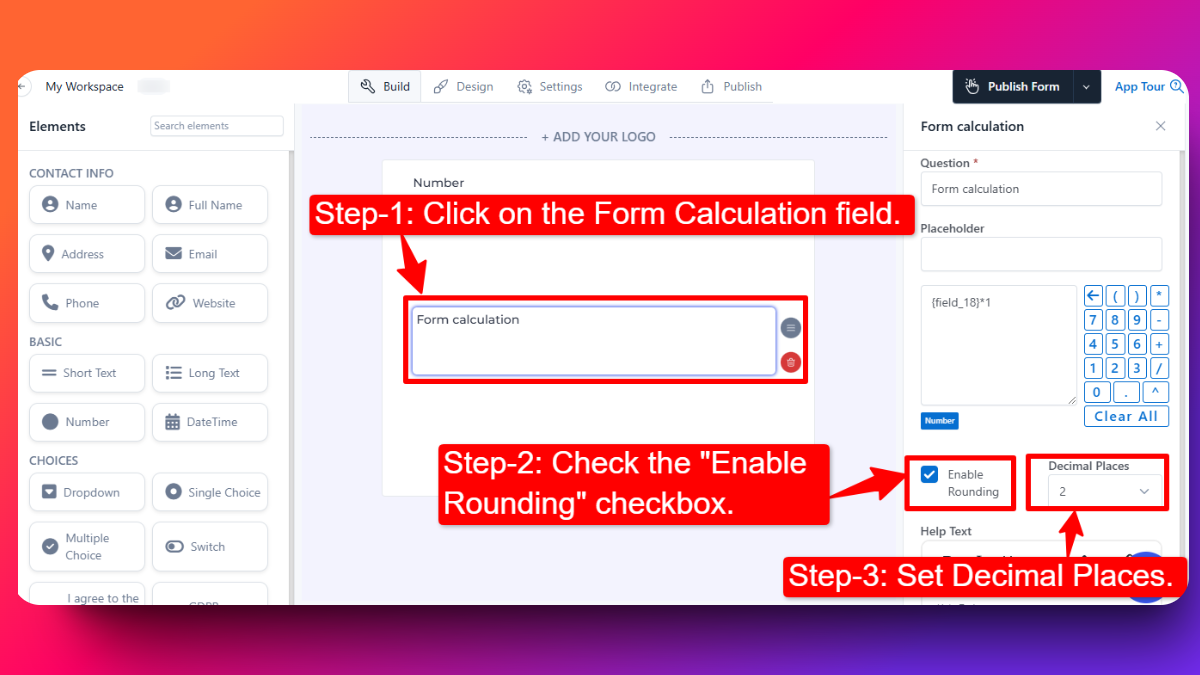
Refine your calculations with customizable rounding. Select the number of decimal places to round your calculation values to.
How to Use Rounding option in Form calculation fields:
Follow the steps below to know how to use rounding option in calculation fields in your form:
Step-1 : Click on the Form Calculation field to go to the calculation field configuration.
Step-2 : Check the "Enable Rounding" checkbox.
Step-3 : Choose the desired number of decimal places.
Benefits:
- Precision Control: Ensure calculations are rounded to the exact decimal places you need.
- Enhanced Accuracy: Improve data presentation with neatly rounded values.
Rounding is also the setting to reach for when a whole-number total is displaying with an unwanted decimal — set the decimal places to 0.
Displaying, hiding and editing the total
- Read-only by default. The Calculation Field is set to read-only so respondents can't overwrite the number your formula produced. You can change this in the field's configuration if you do want the value to be editable.
- Hiding the total. If the number is only there to be recorded — an internal score you don't want the respondent to see, for example — enable the hide option in the Calculation Field's configuration. The calculation still runs and the result is still saved with the submission; it just isn't shown on the form.
Using calculations with payments
A Calculation Field is what most people use to produce the amount charged on a form with payment — see the Stripe and PayPal guides for connecting a payment gateway.
Adding sales tax
Add a second Calculation Field before the total that works out the tax from your tax percentage, then include it in the final total.
If you calculate tax with a Calculation Field, switch automatic tax off in your Stripe settings. Leaving Stripe's automatic tax enabled alongside a tax calculation on the form can cause the payment to fail at checkout.
FAQs
Which fields can I use in a calculation?
Number fields can be used directly. Dropdown, Single Choice and Multiple Choice fields can be used once you've enabled Calculation Value on their options. Rating-style fields that produce a number can also be totalled in a Calculation Field.
Why is my calculation showing 0?
The most common cause is that the choice fields in the formula don't have Calculation Value enabled, so every option is worth nothing. Check Option Settings on each question in the formula. If you're seeing 0/0 specifically, see the Quiz Mode note above.
Can I show a score without showing it to the respondent?
Yes — enable the hide option on the Calculation Field. It's still calculated and still stored with the submission.
Can respondents change the calculated value?
No, not by default — the field is read-only unless you turn that off in its configuration.
Can I use one field's value to fill another field?
Not directly. Copying one field's value into another isn't available, but conditional logic has a Set value action that can set a field's value based on the conditions you define. See Conditional Fields.
How do I get rid of the decimal on a whole number?
Enable rounding on the Calculation Field and set the decimal places to 0.
Related feature: calculation form builder