🔗 Add Forms to Google Sites
You can add any FormNX form to your Google Sites website in two different ways:
- Embed the form (Recommended) – Display the form directly on your Google Sites page so visitors can fill it out without leaving your website.
- Add a button with the form link – Create a button that redirects visitors to your FormNX form in a new tab.
For the best user experience, we recommend embedding your form whenever possible.
You don't need a plugin, and you don't need to write any code.
Option 1: Embedding Forms in Google site (Recommended)
Embedding your form lets visitors complete and submit it without leaving your Google Sites page. This is the best option for contact forms, registration forms, surveys, feedback forms, applications, and more.
Copy the Form's embed code from FormNX
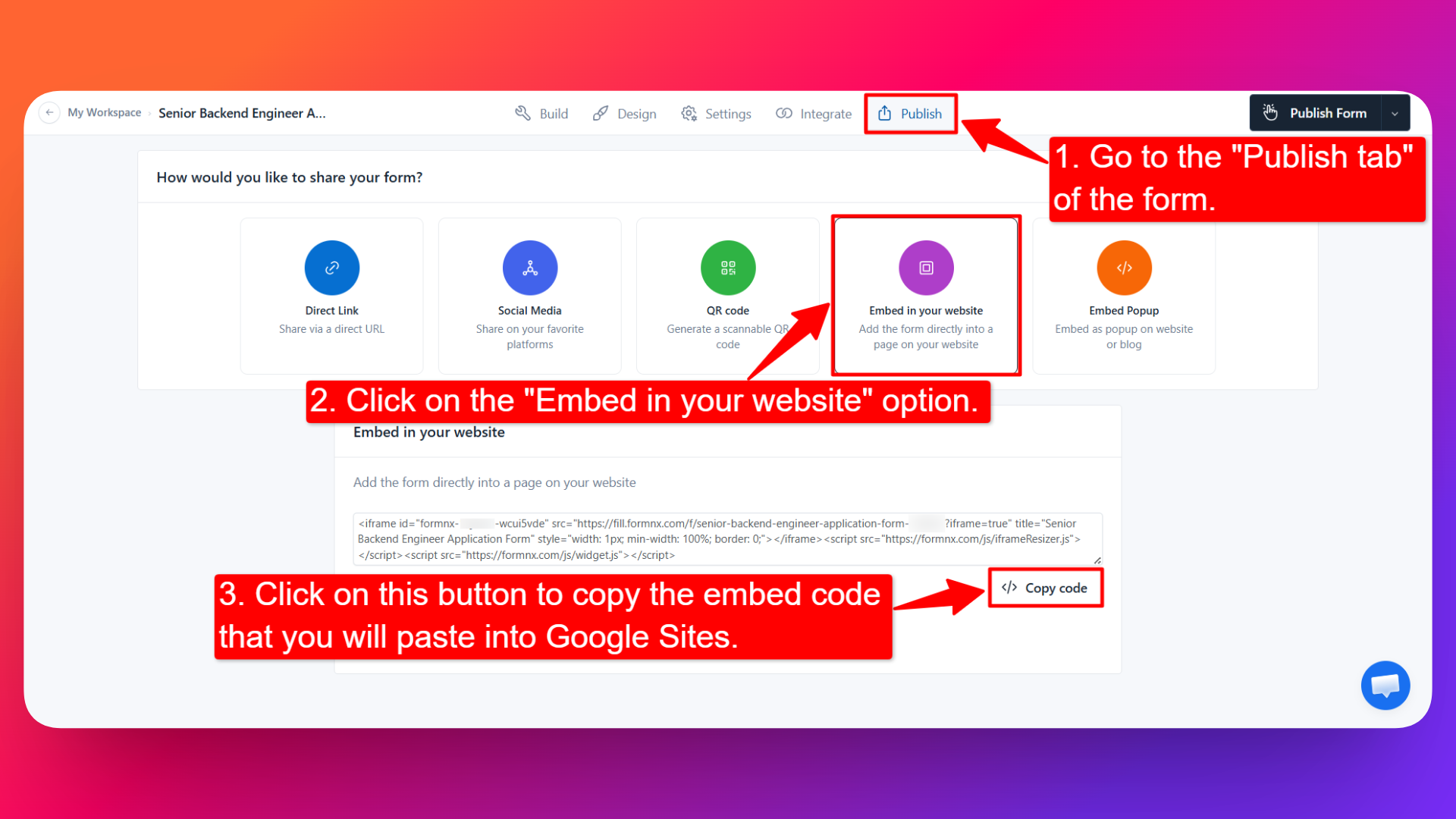
Step-1: Open your form in the Form Builder and go to the Publish tab.
Step-2: Click the Embed in your website option.
Step-3: Click on the </> Copy code button to copy the embed code of your form.
This embed code is what you'll use to display your form on your Google Sites page.
Open Your Google Sites Page
Step-1: Open your website in Google Sites.
Step-2: Navigate to the page where you want to display the form.
Embed the form to your Google Sites page
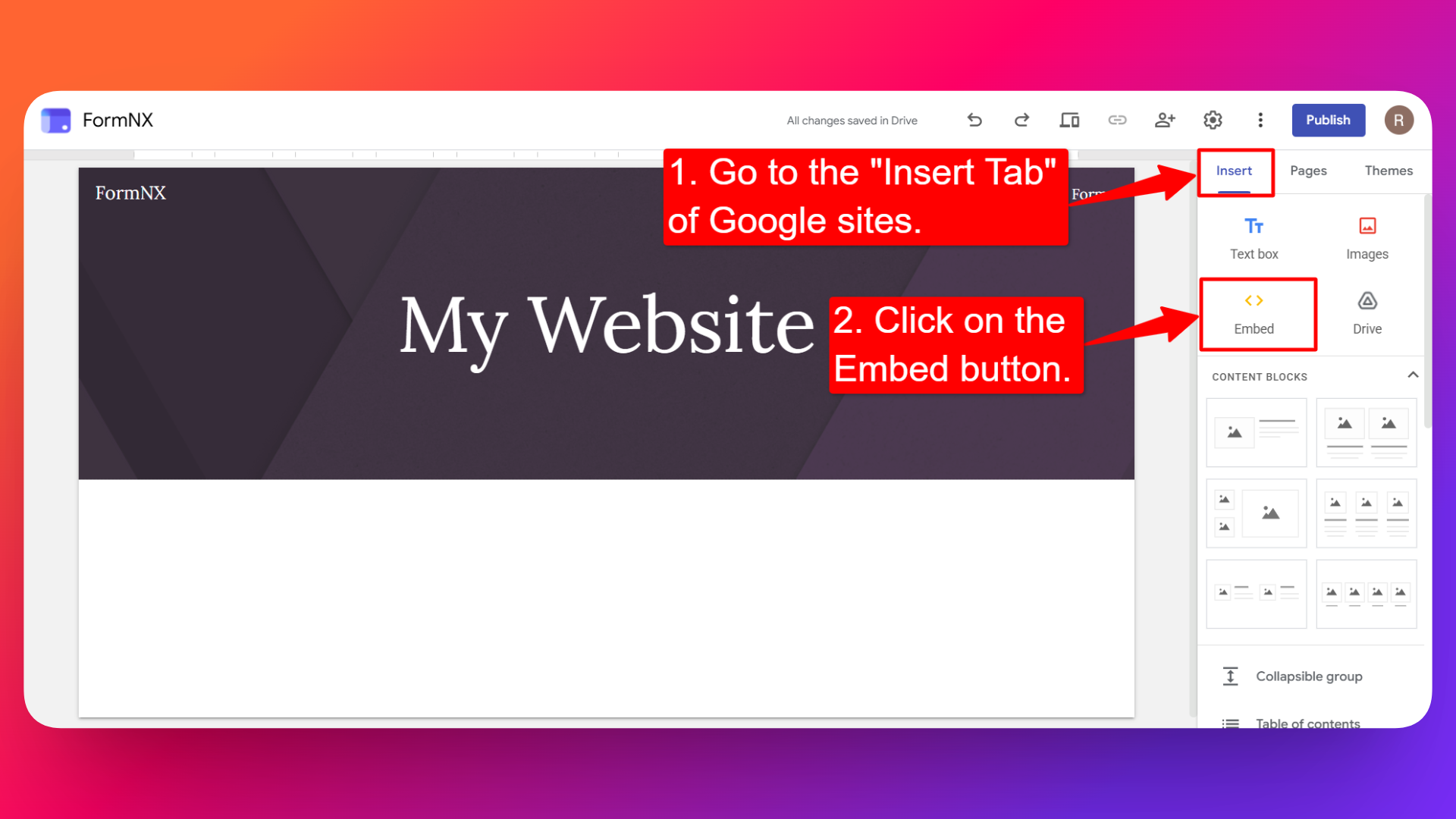
Step-1: From the right-side panel, go to the Insert tab.
Step-2: click the Embed button.
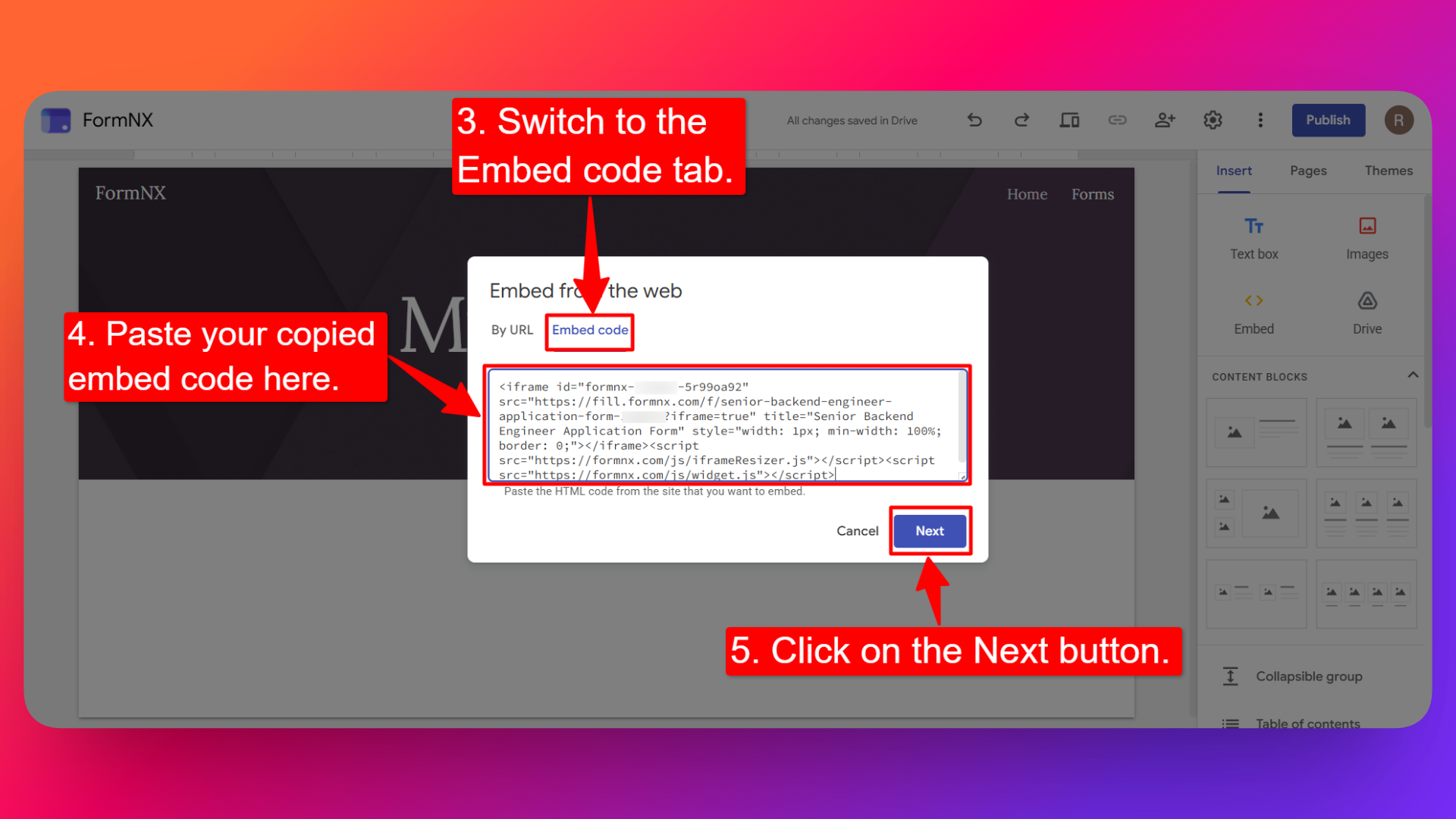
Step-3: Select the Embed code tab
Step-4: Paste your copied embed code.
Step-5: Click Next button.
Step-6: click Insert button.
Step-7: Once the form appears on the page, click and drag the blue dots on the corners to set the size for the embedded form.
Step-8: Click the Publish button in the top-right corner to make your form live.
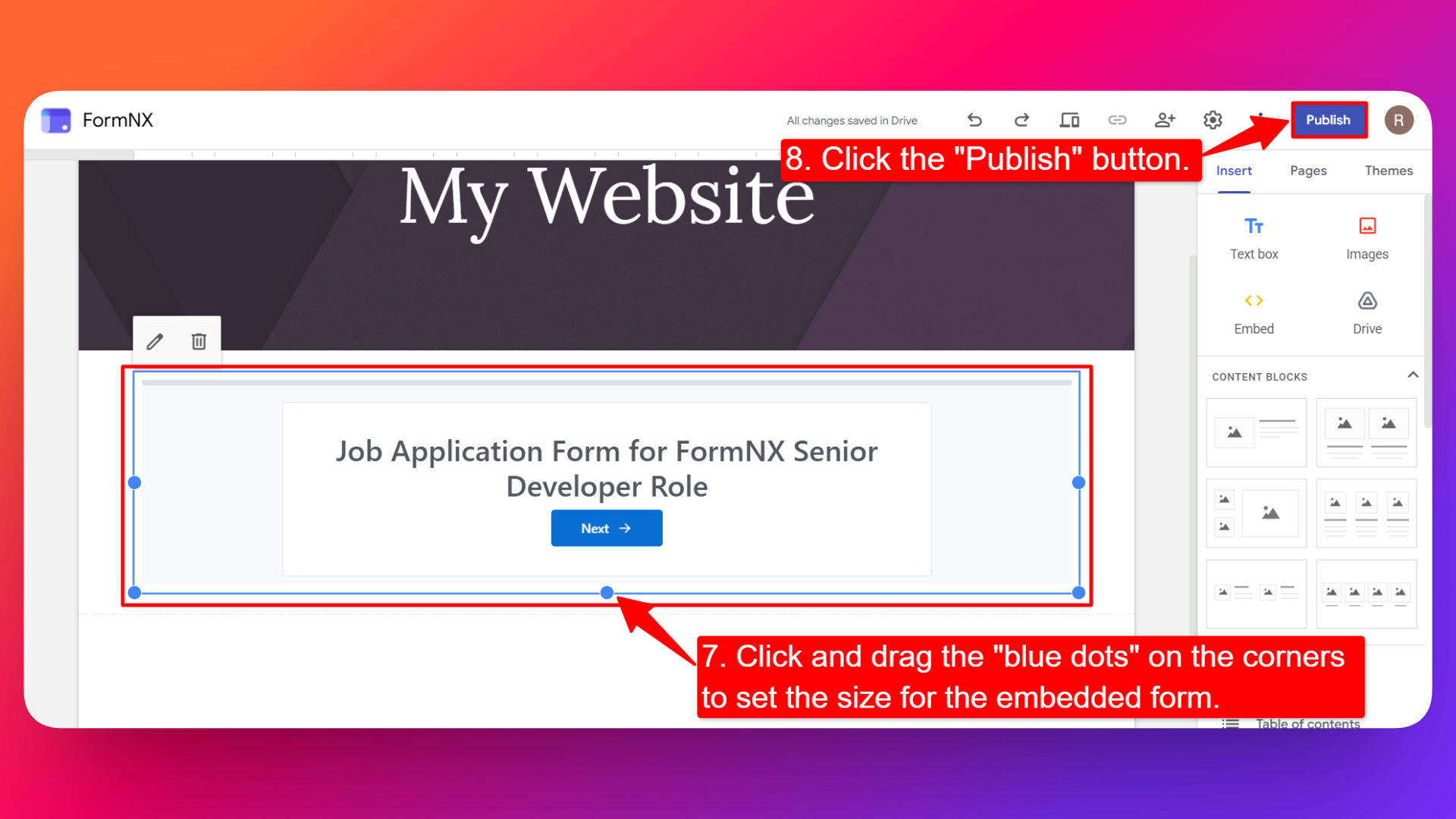
That's it. Your form is now on your Google Sites page, and every response goes straight to your FormNX account.
- If your form contains many fields, increase the height of the embedded form to reduce scrolling and provide a better experience for your visitors.
- You only need to paste the embed code once. When you edit your form later, the form on your Google Sites page updates on its own - you don't have to copy the code again.
Option 2: Add Form Link in Google Site
If you don't want to display the form directly on your website, you can add a button that links to your FormNX form. Visitors will be redirected to the form when they click the button.
This method is useful when:
- You want a cleaner website layout.
- Your form is very long.
- You want the form to open in a separate page.
- You want a simple Register Now, Contact Us, or Fill Out the Form button.
Copy Your Form Link from FormNX
Step-1: Open your form in the Form Builder.
Step-2: Go to the Publish tab.
Step-3: Copy the Form Link (Public URL).
Unlike the embed method, this option only requires your form's public URL.
Add the Form Link to a Google Sites Button
Step-1: Open your website in Google Sites.
Step-2: Navigate to the page where you want to place the button.
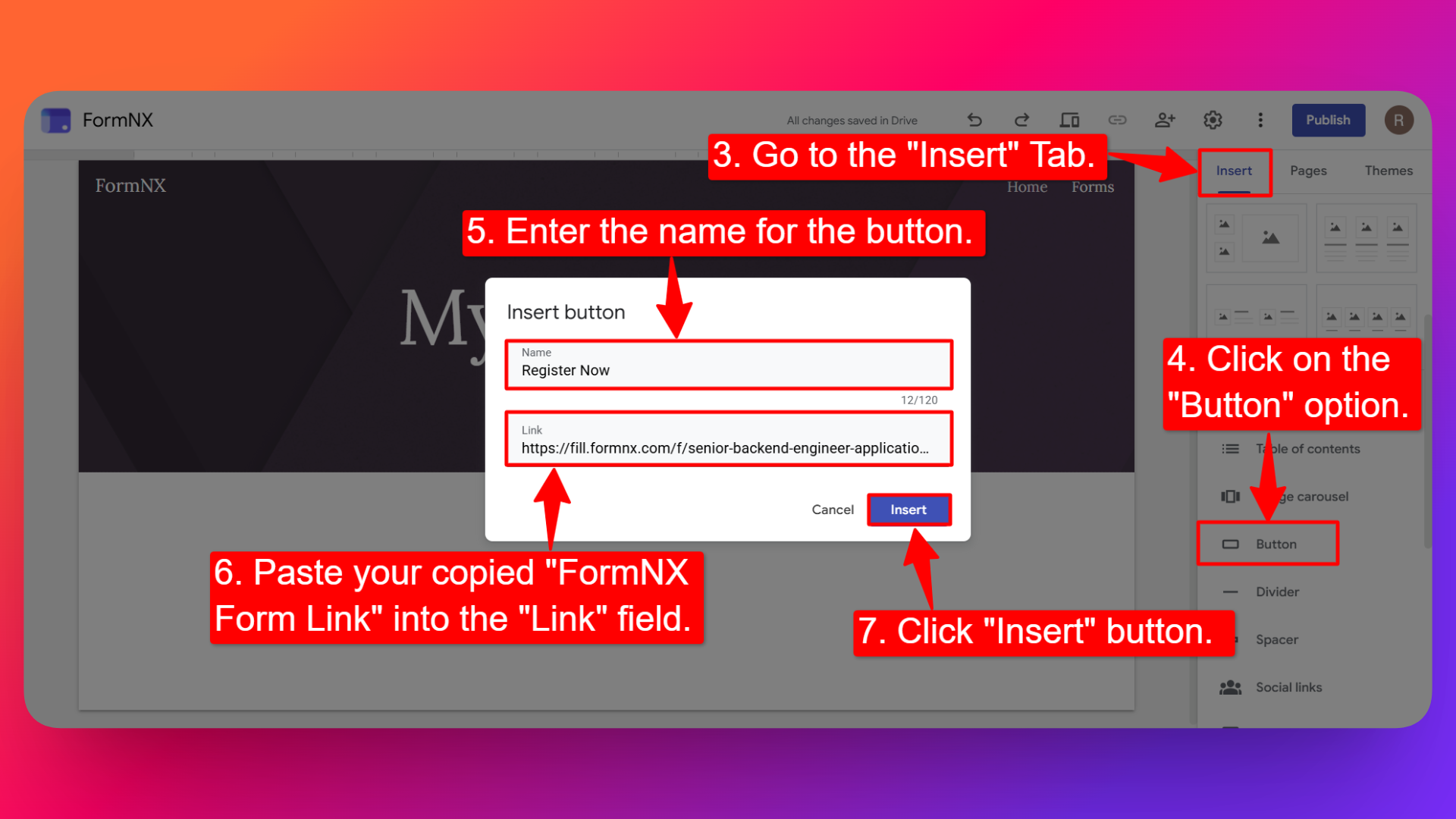
Step-3: From the right-side panel, go to the Insert tab.
Step-4: Click the Button option.
Step-5: Enter the button name/text, for example:
- Register Now
- Contact Us
- Fill Out the Form
- Submit Your Response
Step-6: Paste your copied FormNX Form Link into the Link field.
Step-7: Click Insert.
Step-8: Click Publish.
Visitors can now click the button to open your FormNX form in a new browser tab.
Choose the method that best fits your website:
- Embed the form (Recommended) if you want visitors to complete the form without leaving your website.
- Use a button with the form link if you want a cleaner page layout or prefer the form to open on its own page.
FAQs
Can I add a FormNX form to Google Sites?
Yes. Copy the embed code from the Publish tab of your form, then add it in Google Sites from Insert → Embed → Embed code.
Where do I find the embed code?
Open your form in the form builder, go to the Publish tab, and click Embed in your website. The </> code you see there is your embed code.
Do I need a plugin to embed a form in Google Sites?
No. Google Sites can show HTML embed codes on its own, through the Embed option in the Insert tab.
Where do I see the form responses?
All responses are saved in FormNX, in the All responses section of that form. They are not stored in Google Sites.
My form is not showing on the live page. Why?
Check two things: that you clicked Insert after pasting the code, and that you clicked Publish in the top-right corner. Your changes go live only after you publish the page.
How do I make the form bigger or smaller?
Click the form in the Google Sites editor, drag the blue dots on its corners to fit the form, and publish the page again.
Do I have to paste the code again after editing my form?
No. The embed code always points to your live form, so any change you make in the form builder shows up on your Google Sites page automatically.
Can I link to my FormNX form instead of embedding it?
Yes. Simply copy your form's Public Form Link from the Publish tab in FormNX, create a Button in Google Sites, and paste the link. When visitors click the button, they'll be taken to your form.
Which method is better: Embed or Button?
For most websites, embedding the form is recommended because visitors can complete the form without leaving your page. A button with the form link is a good alternative when you want a cleaner layout or prefer the form to open on its own page.
Related docs: Embedding in a Website · Embedding as Popup forms · Embed forms in WordPress