🔗 Embed Forms in Carrd
You can add any FormNX form to your Carrd website. Your form keeps its own design, and every response is saved in your FormNX account.
You don't need a plugin, and you don't need to know how to code. You only copy one code from FormNX and paste it into Carrd.
Before You Start
Keep these three things ready:
- A published FormNX form that you want to show on your page.
- A Carrd site where you want the form to appear.
- A Carrd Pro Standard plan (or higher).
The Embed element is the only way to add third-party code to Carrd, and it is available on Pro Standard and above. It is not available on the free plan or on Pro Lite.
If the Embed option is greyed out or missing in your builder, your plan doesn't include it yet.
Your FormNX form must be live before you embed it. If the form is not published, visitors will not be able to see or fill it out on your Carrd page.
How Embedding Works in Carrd
Carrd builds a page out of elements — text, images, buttons, and so on. One of these is called the Embed element.
The Embed element is an empty box where you paste code from another service. When you publish your site, that box turns into your form.
The Embed element has a few settings. These are the ones you will use:
| Setting | What it means |
|---|---|
| Type | Choose Code to paste your FormNX embed code. |
| Label | A name only you see in the builder, such as "Contact Form". It doesn't show to visitors. |
| Code | The box where you paste the code copied from FormNX. |
| Style | Inline shows the code where the element sits on the page. Hidden places the code in the site's background (used for popups). |
| Placement | Only appears when Style is Hidden. Choose where the code loads: Head, Body Top, or Body End. |
Ways to Add Your Form
You can add your FormNX form to Carrd in three ways. Choose the one that fits your page:
| Method | What visitors see | Best for |
|---|---|---|
| Embed the form (Recommended) | The form appears directly on the page | Contact, registration, survey, feedback, and application forms |
| Popup form | The form opens in a popup window | Lead capture, offers, exit-intent messages |
| Button with form link | A button that opens your form in a new page | Long forms, or when you want a cleaner page |
Method 1: Embed the Form on Your Page (Recommended)
With this method, the form sits right inside your Carrd page. Visitors fill it out and submit it without leaving your site.
Step 1: Copy the Embed Code from FormNX
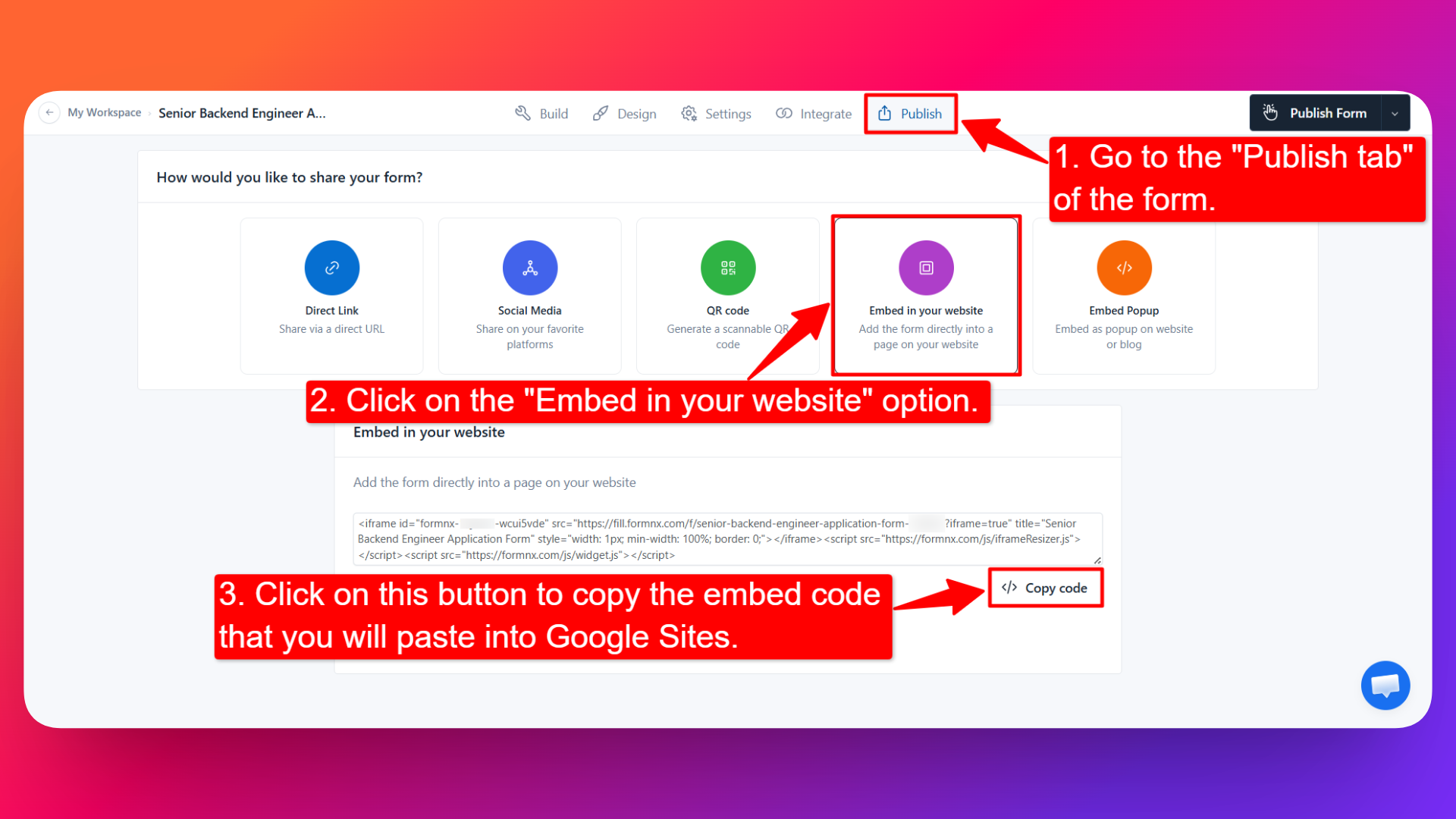
1. Open your form in the Form Builder and go to the Publish tab.
2. Click the Embed in your website option.
3. Click the </> Copy code button to copy your form's embed code.
Step 2: Add the Code to Your Carrd Page
1. Log in to your Carrd account and open the site you want to edit.
2. Click the + (plus) button in the top-left corner of the builder to open the element list.
3. Select Embed.
4. In the settings panel, set Type to Code.
5. (Optional) Give the element a Label, such as "Contact Form", so it's easy to find later.
6. Paste the embed code you copied from FormNX into the Code box.
7. Leave Style set to Inline, so the form shows exactly where this element sits on the page.
8. Click Done to close the panel.
9. Drag the Embed element up or down to place it where you want the form to appear.
Step 3: Publish Your Site and Test the Form
1. Click the Publish this site icon in the top-right corner.
2. Add your site Title and Description if you haven't already.
3. Choose where to publish — a free .carrd.co address or your own custom domain.
4. Click Publish.
5. Open the live site URL in your browser.
6. Fill in the form and submit a test entry.
7. Go to the All responses section of that form in FormNX and confirm your test entry is there.
That's it. Your form is now live on your Carrd page, and every response goes straight to your FormNX account.
You only need to paste the embed code once. When you edit your form later, the form on your Carrd page updates on its own — you don't have to copy the code again.
Method 2: Show Your Form as a Popup
A popup form opens on top of your page. You can set it to open on a button click, after a delay, on scroll, or when a visitor is about to leave.
Step-1: In FormNX, open your form and go to the Publish tab.
Step-2: Open the Embed Popup section and choose your trigger option.
Step-3: Click Copy Code.
Step-4: In Carrd, open your site and click the + (plus) button → Embed.
Step-5: Set Type to Code and paste the popup embed code into the Code box.
Step-6: Set Style to Hidden, then set Placement to Body End.
Step-7: Click Done, then Save and Publish.
Step-8: Open the live site URL and test the popup.
A popup doesn't belong at one fixed spot on the page — it floats above everything. Setting the Style to Hidden keeps the code out of your page layout, and Body End loads it after the rest of the page, which is the safest place for popup and chat-style codes.
If you change a popup trigger option later (button, delay, scroll, or exit), you must copy the code again from FormNX and paste it back into the Embed element.
Learn more about popup triggers in Embedding as Popup forms.
Method 3: Add a Button That Opens Your Form
If you prefer a clean page, you can add a button that sends visitors to your form instead of showing the form on the page.
This method also works on any Carrd plan, because it uses a normal Button element instead of the Embed element.
Step-1: In FormNX, open your form, go to the Publish tab, and copy the Form Link (public URL).
Step-2: In Carrd, open your site and click the + (plus) button.
Step-3: Select the Button element.
Step-4: Enter your button text, for example:
- Register Now
- Contact Us
- Book Your Seat
- Fill Out the Form
Step-5: In the button's URL option, paste your FormNX Form Link.
Step-6: Click Done, then Save and Publish.
Step-7: Open the live site and click the button to test it.
Tips for a Better Looking Form
- Always check the live site. Embedded code never runs inside the Carrd builder, so the builder is not a reliable preview for your form.
- Give the form enough space. If your form has many fields, place the Embed element in a wide section so visitors don't have to scroll inside a small box.
- Match your colours. Style your form inside FormNX first, so it blends with your Carrd design once it's live.
- Test on mobile. Open the live site on your phone and check that the form fits the screen properly.
- Republish after every change. Any edit you make in the Carrd builder goes live only after you click Publish again.
- Only paste code you trust. A wrong or broken snippet can affect how your page loads.
Troubleshooting
| Problem | What to do |
|---|---|
| The Embed option is greyed out or missing | The Embed element needs a Carrd Pro Standard plan or higher. Upgrade your plan to use it. |
| The form shows as an empty box in the builder | This is normal. Carrd never runs embedded code inside the builder. Open your published live site instead. |
| The form does not appear on the live site | Check that you clicked Done in the Embed panel and Publish Changes on the site. Then refresh the page. |
| The form still shows an old version | Clear your browser cache or open the site in an incognito window. |
| Only part of the form loads | You may have copied an incomplete code. Copy the full embed code again from the Publish tab in FormNX and paste it fresh. |
| The form is cut off or has a scrollbar inside it | Give the form more room. |
| The popup does not open | Make sure the Style is set to Hidden with Body End placement, and that you pasted the Embed Popup code, not the standard embed code. |
| Responses are not showing | Test on the published site, not the builder. Responses only save from a live form. |
FAQs
Can I add a FormNX form to Carrd?
Yes. Copy the embed code from the Publish tab of your form, then paste it into an Embed element on your Carrd page and publish the site.
Do I need a paid Carrd plan to embed a form?
Yes, for the embed method. The Embed element is available on Carrd Pro Standard and above. If you're on the free plan or Pro Lite, you can still link to your form using a Button element instead.
Where do I find my form's embed code?
Open your form in the form builder, go to the Publish tab, and click Embed in your website. The </> code shown there is your embed code.
Which Carrd element should I use?
Use the Embed element with Type set to Code. You'll find it under the + (plus) button in the top-left corner of the builder.
Why is my form not visible inside the Carrd builder?
Carrd does not run embedded code in the builder view. Your form will appear only on the published live site.
Do I need a plugin to embed a form in Carrd?
No. Carrd handles embed codes on its own through the Embed element. There are no plugins to install.
Do I have to paste the code again after editing my form?
No. The embed code always points to your live form, so any change you make in the form builder appears on your Carrd site automatically.
Where do I see the form responses?
All responses are saved in FormNX, in the All responses section of that form. They are not stored in Carrd.
How do I make the embedded form taller or shorter?
With the standard embed code, give the section enough space so the form isn't squeezed.
Can I show my form as a popup on Carrd?
Yes. Copy the Embed Popup code from FormNX, paste it into an Embed element, and set the Style to Hidden with Body End placement.
Can I open my form in a new page instead of embedding it?
Yes. Copy your form's public Form Link from the Publish tab, add a Button element in Carrd, and paste the link into the button.
Which method is better: embed, popup, or button?
Embedding is best for most pages because visitors can complete the form without leaving your site. Use a popup for lead capture and offers, and use a button when your form is long or you want a cleaner page.
Related docs: Embedding in a Website · Embedding as Popup forms · Embed forms in WordPress · Add Forms to Google Sites · Embed Forms in FlexiFunnels